
The copper network is gradually shutting down in France, community by community. For telecommuters still connected via ADSL, the issue is no longer just about optimizing their internet connection: it’s sometimes about whether their access technology will still be active in a few months.
At the same time, the deployment of fiber has been delayed in certain areas, including urban ones. Working effectively from home therefore requires a complete diagnosis, from the type of connection to the last meter of cable between the router and the computer.
Closure of copper and fiber eligibility: check before optimizing
Before adjusting Wi-Fi settings or purchasing a repeater, the first step is to check the technology available at one’s address. The commercial closure of the copper network does not mean an immediate cut-off of existing ADSL lines: the technical shutdown follows a schedule specific to each community.
The trap is that the closure of copper may occur before the arrival of fiber in some cases. Some premises remain unconnectable, and the deadlines announced to complete certain deployments have been pushed back. A telecommuter relying on a quick switch to fiber risks finding themselves without a stable solution during a transitional period.
To find information about CGI Network and network solutions suitable for working from home, one must first know their actual eligibility. The tests available on operators’ websites or on independent platforms indicate the connected technology (ADSL, VDSL, FTTH fiber) and the theoretical maximum speed.
When fiber is not available, alternatives exist: fixed access via 4G or 5G, or even satellite. Their advertised speeds do not always reflect the reality in professional use (video conferencing, VPN, transferring large files). A backup access must be tested on the actual uses of the workstation, not just on a generic speed test.
Ethernet cable vs. Wi-Fi: how the last meter affects speed
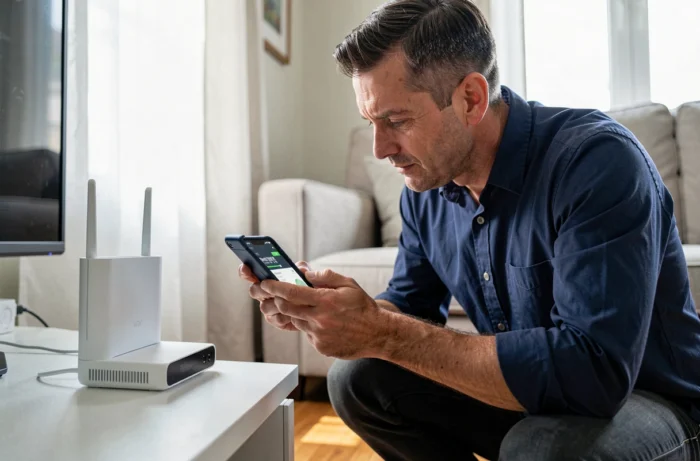
The majority of connection issues in telecommuting do not come from the speed provided by the operator, but from what happens between the box and the computer. Wi-Fi remains the weak link, especially in a home where multiple devices share the bandwidth.
Connecting an Ethernet cable between the router and the work computer eliminates interference, signal loss due to walls, and competition between devices on the wireless network. For a fixed workstation, it’s the most reliable solution. The Ethernet cable eliminates almost all speed losses related to Wi-Fi.
When the cable is not feasible
In an apartment where the office is far from the box, running an Ethernet cable is not always possible. Two alternatives deserve consideration:
- Powerline adapters use the electrical network of the home to carry the signal. Their performance depends on the condition of the electrical wiring: in an old building, the speed can drop significantly.
- A Wi-Fi repeater or a mesh system extends the coverage of the signal. A basic repeater halves the speed since it uses the same channel to receive and retransmit. A mesh system manages the switch between access points better but is more expensive.
- Sharing a 4G connection from a smartphone can serve as a temporary troubleshooting solution, not as a primary connection for a full day of work.
Wi-Fi frequencies and home network congestion
Recent boxes emit on two frequencies: 2.4 GHz and 5 GHz. The difference is not trivial for a telecommuter.
The 5 GHz band offers higher speed but shorter range. It penetrates walls less effectively. The 2.4 GHz band covers a greater distance but suffers more interference, especially in buildings where dozens of networks coexist on the same channels.
The configuration accessible from the router’s administration interface (usually via 192.168.1.1 in a browser) allows separating the two bands and assigning a dedicated frequency to professional devices. Connecting the work computer to the 5 GHz band and leaving smartphones, tablets, and televisions on the 2.4 GHz band reduces congestion during office hours.
Choosing the right channel on the 2.4 GHz band
On this frequency, channels 1, 6, and 11 are the only ones that do not overlap. Wi-Fi analysis tools (available on computer or smartphone) allow scanning neighboring networks and identifying the least congested channel. Changing the Wi-Fi channel takes two minutes and can reduce micro-cuts.
Placement of the box and speed in video conferencing
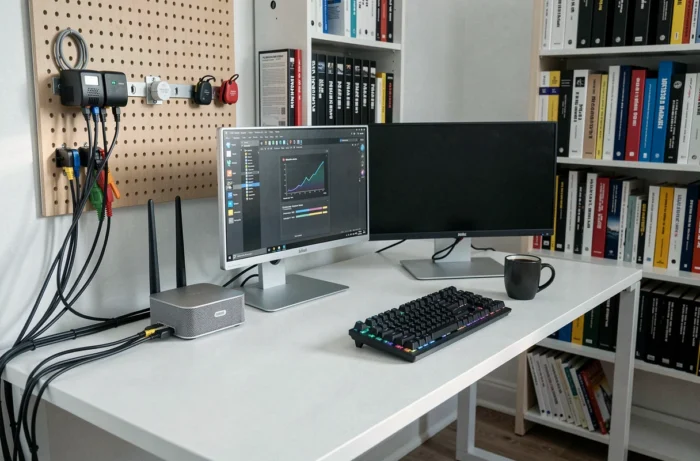
The physical position of the router has a direct effect on the quality of the Wi-Fi signal. A few simple principles can make a difference:
- Place the box at a height (on a piece of furniture, not on the floor) and in an open space, away from load-bearing walls and electrical devices that generate interference (microwaves, baby monitors).
- Bring the workstation closer to the router as much as possible, or if not, orient the router’s antennas towards the work area.
- Avoid placing the box in closets, technical cabinets, and dead zones of the home.
In video conferencing, upload speed is as important as download speed. However, it is often the upload speed that is lacking, particularly on ADSL connections where it remains limited to a few megabits per second. Insufficient upload speed causes video stuttering and audio dropouts, even if the download speed seems fine.
Turning off video during meetings where it adds no value, closing streaming tabs in the background, and disabling automatic updates during work hours: these actions free up upload bandwidth when it is most needed.
The diagnosis of an internet connection for telecommuting is not limited to a one-time speed test. The connection technology, the physical path between the box and the computer, the Wi-Fi frequency used, and the management of competing devices form a chain. The weakest link determines the actual quality of the connection, regardless of the speed advertised by the operator.